 COME
COMECompare COME Package and Signing Context Before Replacing an App
A matching display name is not enough for update compatibility. Preserve a package or signing conflict and compare the source with the installation already present. Uninstalling to force a different file through can discard useful context while leaving the relationship unexplained.
Start with a completed file
An APK is an Android package, not simply any file that includes COME in its name. Open the browser's download list and establish whether the transfer completed. A partial download, a saved HTML page or an image cannot be repaired by changing its filename to end in .apk. Keep the original source address available so you can explain where the file came from.
Record the filename and the release information displayed beside the download. A filename can be changed by anyone, so it is useful for organising files but weak evidence of who created them. A version label describes a release; it is not a compatibility guarantee or a security assessment.
Understand what each comparison can tell you
The displayed download size can help notice an obviously incomplete transfer, but a size label may be rounded and the installed footprint will differ. A checksum can identify whether two copies contain identical bytes, but only a checksum from a trustworthy source makes that comparison useful. For an authenticity comparison, obtain the expected checksum from a trustworthy, separate source.
Android package identity and the signing certificate matter when updating an existing installation. Matching display names do not guarantee matching package identities or compatible signatures. If Android rejects an update because of a conflict, keep the error message and the working installation. Do not uninstall simply to force two apparently similar files to fit.
Compare with the app you already have
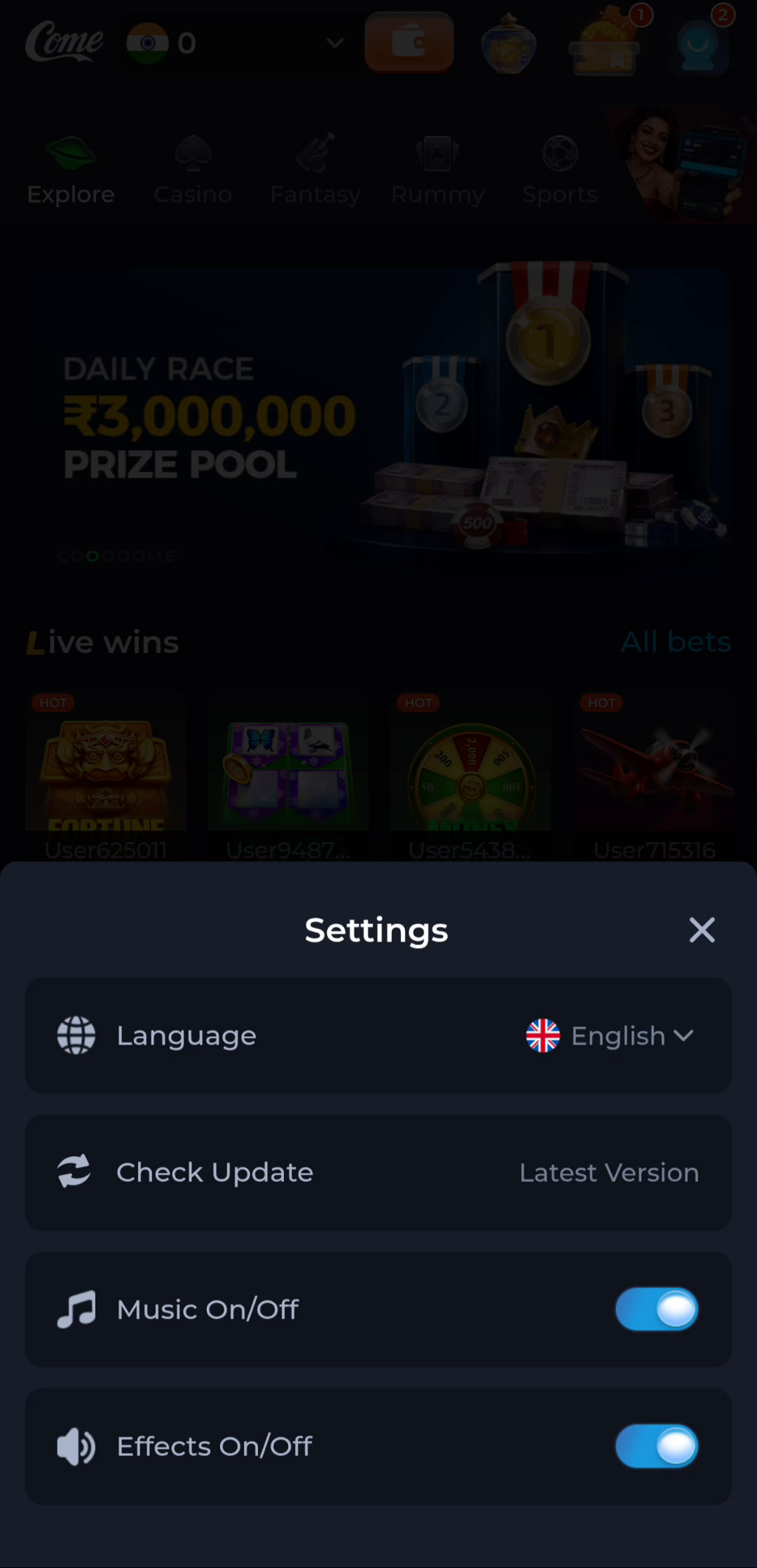
For an existing installation, open Android's app information and note the installed version when shown. COME's own Settings includes Check Update, which provides a product-level route to release information. Compare the route as well as the labels. A search result for a similarly named app is not a replacement source for the product you already use.
If you are installing for the first time, the relevant comparison is with the product's own published details and the Android installer. Do not invent a package identifier from the marketing name. If the publisher information is unclear or the installer shows an unexpected application, pause and seek clarification before proceeding.
Keep the result in perspective
Passing a few visual checks is not a malware scan, a legal assessment or proof of official status. Keep Play Protect enabled and read its warnings. The useful outcome here is a coherent match between the product, file, release and intended device, with no unexplained conflict. An unresolved mismatch is a reason to stop, not to search for a way around the warning.
A related situation to recognise
If a supposed installer opens as text, an image or a page, stop and inspect the download entry. A web response saved locally is not automatically an APK. Return to the product page, identify the intended Android control and observe the transfer it starts. Do not use a file renamer or converter to make the extension look right. A valid completion path ends at Android's package installer with the expected product information, not simply at a filename containing a familiar brand.
Questions about this task
Is a matching logo enough?
No. Artwork can be copied and does not identify a signing certificate or file contents.
Should the installed size equal the download size?
No. Installation unpacks the package and app data can add to the space used.
Choose the next step
If this task is complete, continue from the stage you reached. If the symptom remains, keep the exact message and use the related guide only when it addresses that different question.
A Warning Appears Only on the New COME Package