 COME
COMEStart a COME Update from the Installation You Already Use
Use the current app's Settings route and Android's installed-version information to frame the update. Keep the working account available and compare the offered release. Do not replace the app merely because a search page has a newer date or a filename says latest.
Begin from the installation you use
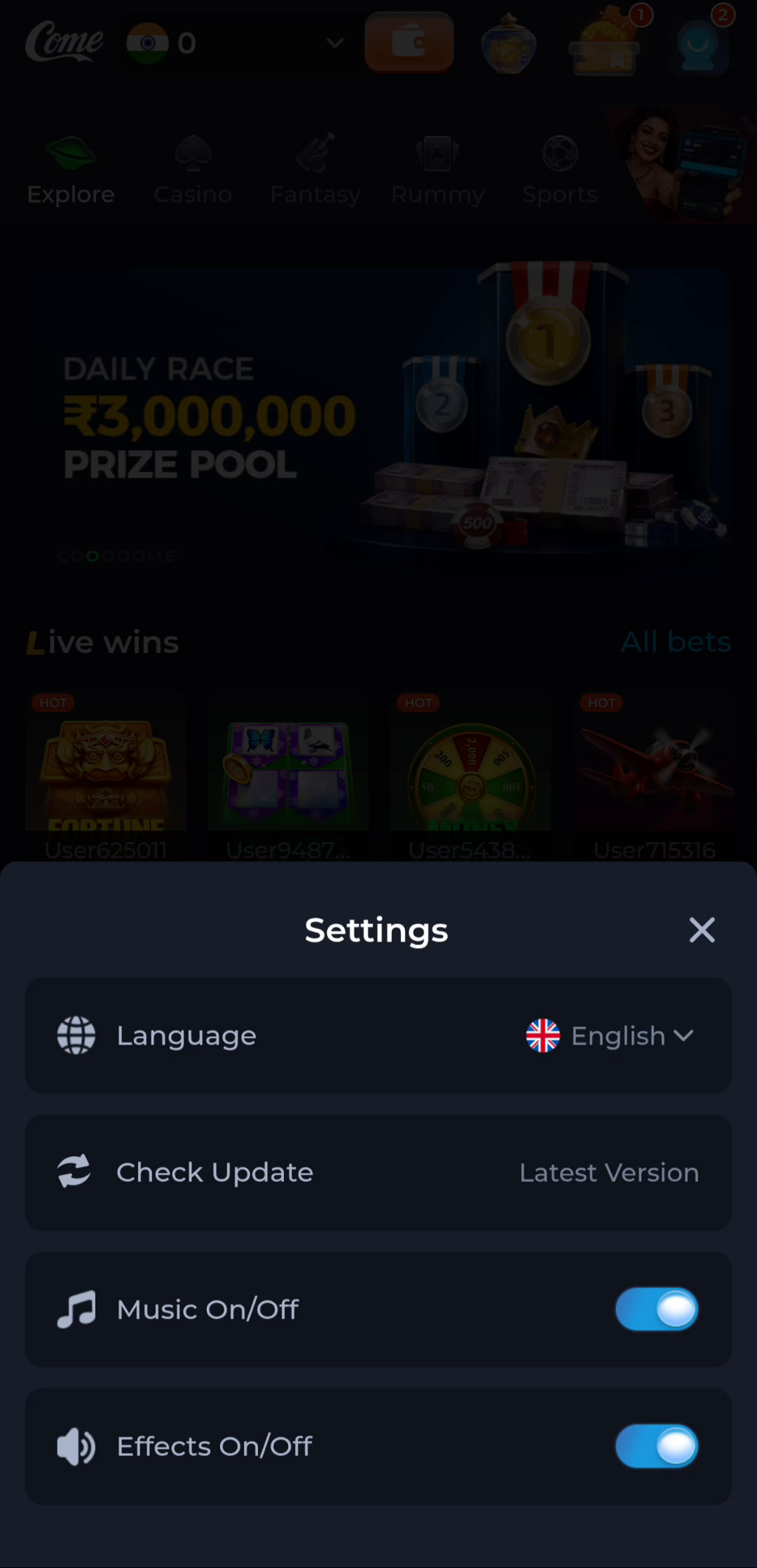
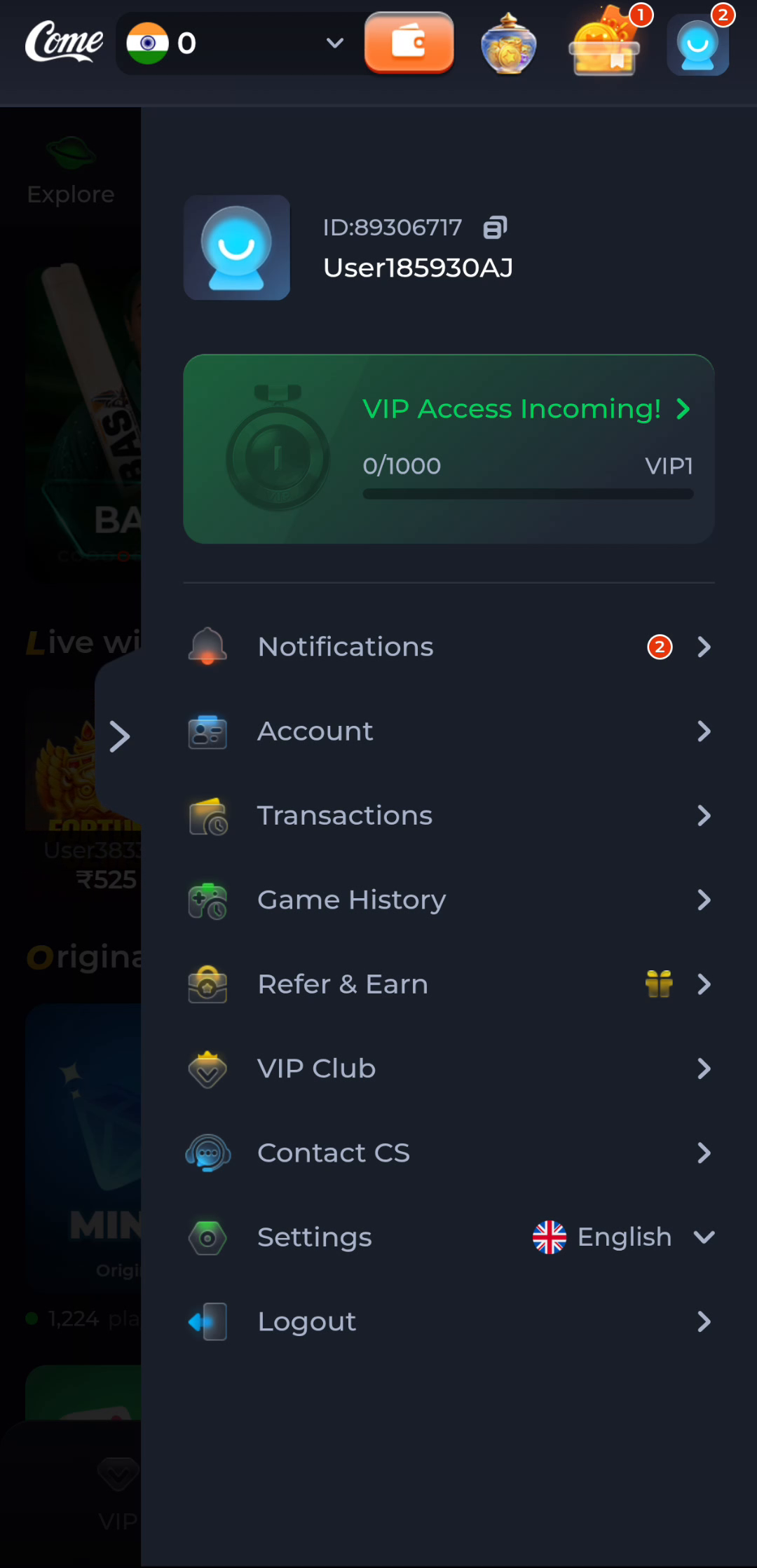
If COME already opens, start with that installation. Open its profile menu and look for Settings. The Settings screen includes a Check Update row, separate from Language, Music On/Off and Effects On/Off. Use the update control to find the next step offered by the product; a screenshot of a Latest Version label is not a statement about the copy on your phone.
Record the installed version using Android's app-information view when available. Also establish which account you use and how you sign in. An update task should not start by deleting the working app, clearing its storage or registering a replacement account.
Compare the release and the route
Read the version offered through the update entry and compare it with the installed version. A new date on an article, a number in a filename or a search snippet is not an authoritative release sequence. If the destination offers the same version, there may be no reason to repeat the download. If it offers a different version, examine its requirements and instructions.
The product's visible name alone cannot establish update compatibility. Android relies on package and signing relationships as well as version rules. If the installer reports a conflict, preserve the message and the current installation while you investigate. Do not use an unrelated mirror simply because its page says new version.
Install only when the next step is clear
If an update package is offered, allow its transfer to finish and follow Android's prompts. Keep the phone charged enough to finish and use a stable connection. Do not interrupt an installation to open the older copy. Leave Play Protect enabled and read any new warning rather than treating it as a routine obstacle.
After a successful installation, open COME and confirm the expected product appears. Check the version again if Android shows it, then confirm the appropriate account. This is a narrower and more useful completion test than expecting every visual element, campaign or game catalogue to remain identical.
If the update path is unavailable
If Check Update is absent in your current interface, do not assume the screenshot's position applies to all versions. Use the current product entry and its help controls. Describe the installed version, device, update source and exact result privately. An account recovery issue, a failed transfer and an incompatible update should be reported as different problems.
A related situation to recognise
If the product's update route and Android's installed-app information show the same release label, another transfer may not be necessary. Compare the actual version fields, not the date of a web article or a screenshot. If the app still has a separate problem, describe that symptom directly. Checking for an update can be a useful observation, but it is not a universal repair for connection failures, forgotten credentials or account-record questions.
Questions about this task
Does a dated guide prove a release is latest?
No. Publication and review dates describe the guide, while release information belongs to the app.
Should I install an older file if an update fails?
An older package can have its own compatibility and security problems. Investigate the actual failure first.
Choose the next step
If this task is complete, continue from the stage you reached. If the symptom remains, keep the exact message and use the related guide only when it addresses that different question.
Preserve COME Account Access Through an Update Attempt